
WHAT IS A SERP PREVIEW TOOL?
A SERP preview tool shows you a mock-up of your Google search result before that result exists. You type in a title, a URL, and a meta description, and the tool renders them the way Google would: same font, same line width, same cut-off point.
That sounds minor until you've watched it happen. You spend an afternoon on a page, write a title you're proud of, publish it, and two weeks later you find Google showing Complete Guide to Choosing the Right Accounting Software for Your Sm… in the results. The half of the sentence that made the pitch is gone.
Google doesn't measure titles in characters. It measures them in pixels, roughly 580 on desktop, which is why a title full of narrow letters survives where one full of capitals and wide letters gets clipped. The 50–60 character guideline is a shortcut, and a decent one, but a visual preview tells you the truth for your specific wording.
There's a second thing worth understanding. Google rewrites titles. If it decides your title doesn't match what the page is about, or that a heading on the page describes it better, it will substitute its own. A preview can't stop that, but a clear, accurate, well-scoped title makes the substitution far less likely. Vague titles and keyword-stuffed ones get overwritten most often.
Meta descriptions get rewritten even more aggressively, usually pulled from whichever passage matches the query. That's fine. A good description still gives Google a strong default and still controls the snippet for the queries you care about most.
HOW TO USE THE SERP PREVIEW TOOL
Step 1 — Drop in your page title. Type it or paste it from your CMS in the Rext AI SERP preview tool, and the counter updates live. Watch the desktop preview as you go, and pay attention to where the text lands rather than just what the number says.
Step 2 — Add the page URL. Full URL with the protocol. The preview turns it into the breadcrumb path Google displays, so you'll spot ugly slugs and stray parameters right away.
Step 3 — Write the meta description. Treat it as ad copy, not a summary. Say what the reader gets and give them one reason to choose you over the four results around you.
Step 4 — Switch between Desktop and Mobile. This is the step most people skip because mobile snippets are narrower, so a title that sits comfortably on desktop can lose its last three words on a phone. If most of your traffic is mobile, make that tab your default check.
Step 5 — Trim, rewrite, repeat. Cut filler words first. "Ultimate," "complete," "everything you need to know" — none of them earn their space. Front-load the keyword, push the brand name to the end.
Step 6 — Copy the tags and ship it. Paste into WordPress, Shopify, Webflow, or whichever SEO plugin you use. Then run the same check again after publishing, because some themes append the site name automatically and blow past the limit without telling you.
SERP PREVIEW EXAMPLES
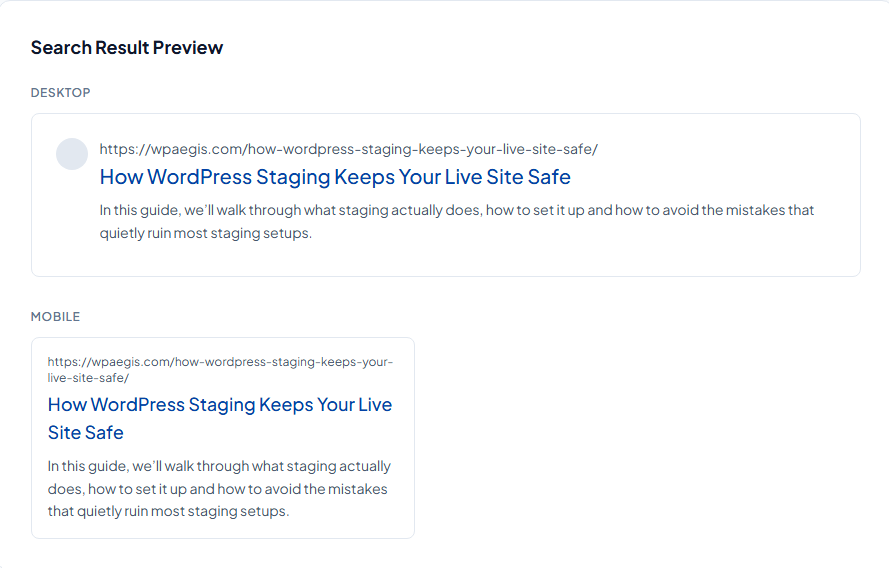
Example:
Page Title:
How WordPress Staging Keeps Your Live Site Safe
URL:
Enter page URL in the URL box.
Meta description:
In this guide, we’ll walk through what staging actually does, how to set it up, and how to avoid the mistakes that quietly ruin most staging setups.
KEY FEATURES AND CAPABILITIES
Live desktop and mobile rendering. Both layouts update as you type. No refresh, no submit button, no guessing which one matters more.
Accurate truncation points: The preview cuts text where Google cuts it, not at an arbitrary character count.
Character counters on every input field. Colour-coded so you can see at a glance whether you're safe, close, or over.
Nothing leaves your browser: The tool runs client-side. Unpublished titles for client projects stay on your machine.
No account, no limits: Check one snippet or a hundred. There's no signup wall and no daily cap.
Works on a phone: Useful when you're reviewing a page on the move and want a second opinion before approving it.